Azure DevOps pipelines
We’re ready to setup our new build pipeline in Azure DevOps. This pipeline will consist of three steps: create a new VM, run all the build steps, and delete the VM:

First of all check that your pipeline runs on Azure pipelines (aka Azure-hosted):

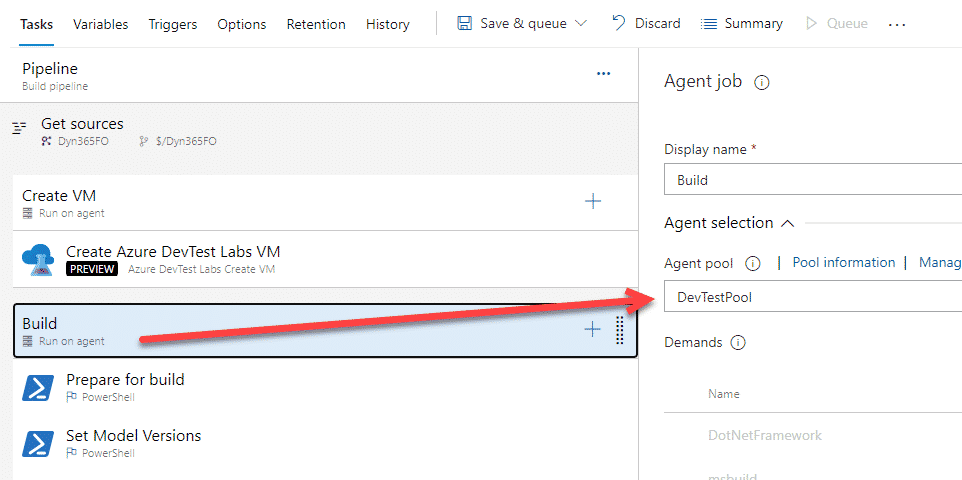
The create and delete steps will run on the Azure Pipelines pool. The build step will run on our DevTestLabs pool, or the name you gave it when configuring the artifact on DevTest Labs or the script on the VM.
Create Azure DevTest Labs VMLink to section: Create Azure DevTest Labs VM
Create a new pipeline and choose the “Use the classic editor” option. Make sure you’ve selected TFVC as your source and click “Continue” and “Empty job”. Add a new task to the pipeline, look for “Azure DevTest Labs Create VM”. We just need to fill in the missing parameters with our subscription, lab, etc.

Remember this step must run on the Azure-hosted pipeline.
BuildLink to section: Build
This is an easy one. Just export a working pipeline and import it. And this step needs to run on your self-hosted pool:
Optional: use SelectiveSync (not recommended, see next option)Link to section: Optional: use SelectiveSync (not recommended, see next option)
You can replace the Database Sync task for a PowerShell script that will only sync the tables in your models:

Thanks Joris for the tip!
Optional: use d365fo.tools to sync your packages/modelsLink to section: Optional: use d365fo.tools to sync your packages/models
This is a better option than the SelectiveSync above. You can synchronize your packages or models only to gain some time. This cmdlet uses sync.exe like Visual Studio does and should be better than SelectiveSync.
Add a new PowerShell task, select Inline Script and this is the command:
Invoke-D365DbSyncModule -Module "Module1", "Module2" -ShowOriginalProgress -VerboseOptional: use d365fo.tools to deploy SSRS reportsLink to section: Optional: use d365fo.tools to deploy SSRS reports
If you really want to add the report deployment step to your pipeline you can save some more extra time using d365fo.tools and just deploy the reports in your models like we’ve done with the DB sync.
Run this in a new PowerShell task to do it:
Publish-D365SsrsReport -Module YOUR_MODULE -ReportName *Delete Azure DevTest Labs VMLink to section: Delete Azure DevTest Labs VM
It’s almost the same as the create step, complete the subscription, lab and VM fields and done:

And this step, like the create one, will run on the Azure-hosted agent.
Dependencies and conditionsLink to section: Dependencies and conditions
When all three steps are configured we need to add dependencies and conditions to some of them. For example, to make sure that the delete VM step runs when the build step fails, but it doesn’t when the create VM step fails.
BuildLink to section: Build
The build step depends on the create VM step, and will only run if the previous step succeeds:

Delete VMLink to section: Delete VM
The delete step depends on all previous steps and must run when the create VM step succeeds. If the create step fails there’s no VM and we don’t need to delete it:
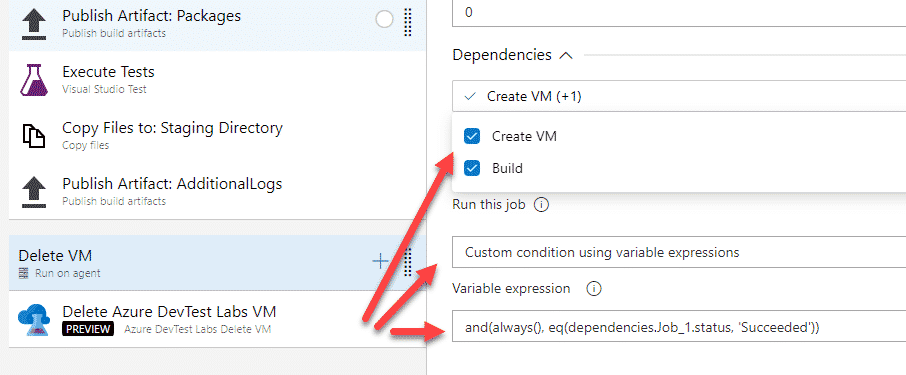
This is the custom condition we’ll use:
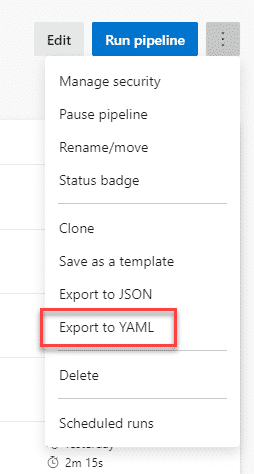
and(always(), eq(dependencies.Job_1.status, 'Succeeded'))If you need to know your first step’s job name just export the pipeline to YAML and you’ll find it there:

If this step fails when the pipeline is run, wait to delete the VM manually, first change the VM name in the delete step, save your pipeline and then use the dropdown to show the VMs in the selected subscription, and save the pipeline.
2 comments
I have installed the Dev.tools in build server and try run the Deploy reports to sepcific model but its failed, also could you please help with how i can use deploy repots script Publish-D365SsrsReport -Module YOUR_MODULE in my pipeline.
PS C:\windows\system32> Publish-D365SsrsReport -Module XXXXXXXXXXXXXX
Microsoft.Dynamics.AX.AosConfig.AzureConfig.bindir: K:\AosService\PackagesLocalDirectory
Module: XXXXXXXXXXX
ReportName: *
Getting the protocol and port …
Protocol: http://; Port: 80
Reporting Servers: 127.0.0.1
Testing: http://127.0.0.1:80/ReportServer …
Checking status of Report Server URL: http://127.0.0.1:80/ReportServer
Success! Status check of Report Server URL: http://127.0.0.1:80/ReportServer
Testing reporting services completed.
Start deploying reports …
Publish-AXReport : An error occurred while retrieving module with module name pattern XXXXXXXXXXXX
At K:\AosService\PackagesLocalDirectory\Plugins\AxReportVmRoleStartupTask\Reporting.psm1:504 char:9
+ Publish-AXReport -MaxDegreeOfParallelism 1 -ErrorAction Conti …
+ ~~~~~~~~~~~~~~~~~~~~~~~~~~~~~~~~~~~~~~~~~~~~~~~~~~~~~~~~~~~~~
+ CategoryInfo : OpenError: (:) [Publish-AXReport], DirectoryNotFoundException
+ FullyQualifiedErrorId : An error occurred while retrieving module with module name pattern BrunswickGlobalTemplate,Microsoft.D
ynamics.AX.Framework.Management.Reports.PublishReportCommand
0.6093814 Seconds.
[14:10:09][Publish-D365SsrsReport] Something went wrong while deploying the SSRS Report(s) | Errors occured during report deployment.
WARNING: [14:10:09][Publish-D365SsrsReport] Stopping because of errors
could you help how build script on deploy reports in pipeline ? $(DynamicsSDK)\DeploySSRSReports.ps1
Check if the SSRS service is running, and also that the module names are the correct ones.
Comments are closed.