Create the release pipeline in DevOps
Go to Azure DevOps, and to Pipelines -> Releases to create the new release. Select “New release pipeline” and choose “Empty job” from the list. On the artifact box select the build which will be used for this release definition:
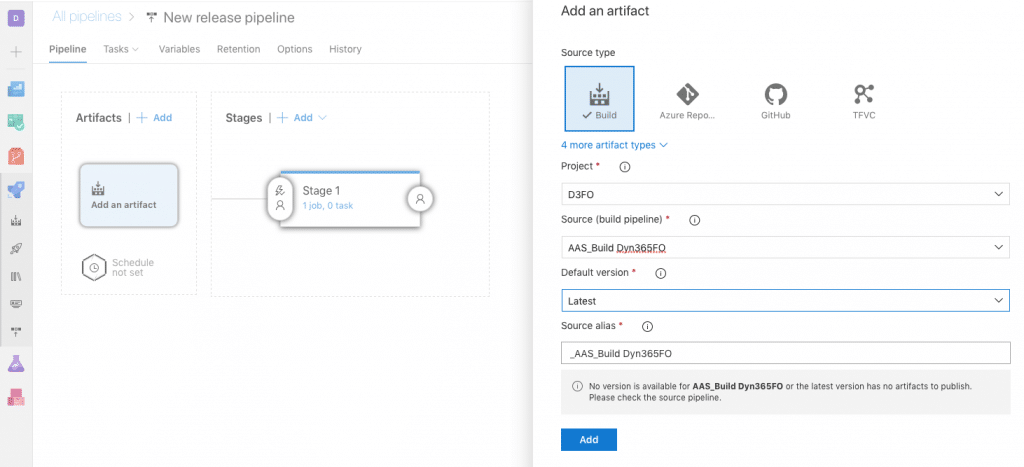
Pick the build definition you want to use for the release in “Source”, “Latest” in “Default version” and push “Add”.
Upload to LCSLink to section: Upload to LCS
The next step we’ll take is adding a Task with the release pipeline for Dynamics. Go to the Tasks tab and press the plus button. A list with extension will appear, look for “Dynamics 365 Unified Operations Tools”:
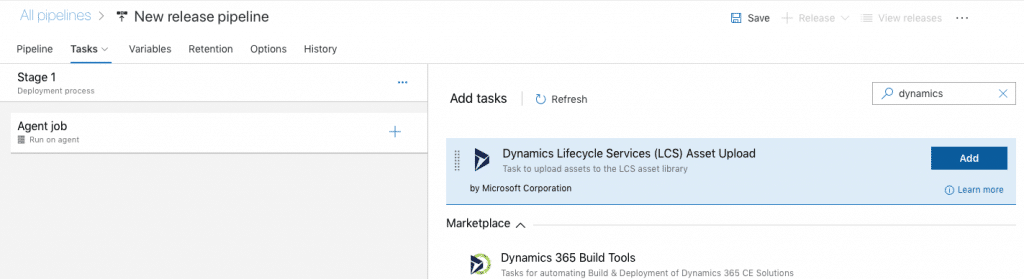
If the extension hasn’t been added previously it can be done in this screen. In order to add it, the user used to create the release must have admin rights on the Azure DevOps account, not only in the project in which we’re creating the pipeline. When the task is created we need to fill some parameters: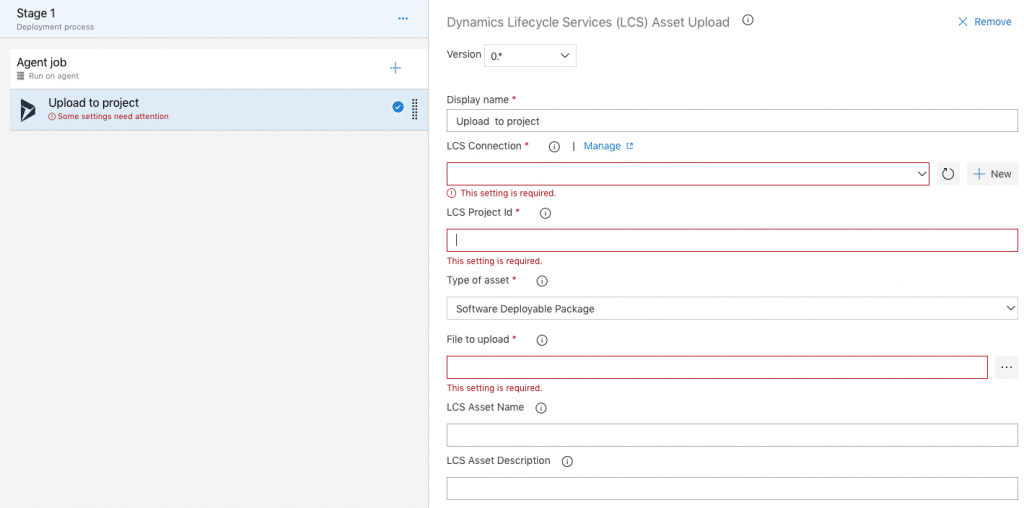
Apply deployable packageLink to section: Apply deployable package
This step is finally available for self-service environments! If you already set this for a regular environment you can still change the task to the new version.
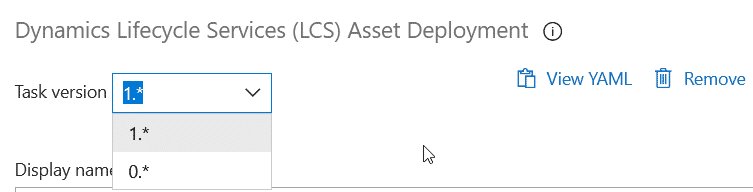
The new task version 1 works for both type of environments: Microsoft managed (regular environments) and self-service environments. The task version 0 is the old one and will only work with regular environments. You can safely switch your deploy tasks to version 1. What’s different in task version 1? I guess that some work behind it that we don’t see to make it support self-service, but in the UI we only see a new field called “Name for the update“.

This field is needed only for the self-service environments deployments, it will be ignored for regular ones, and corresponds to the field with the same name that appears on LCS when we apply an update to a sandbox environment:
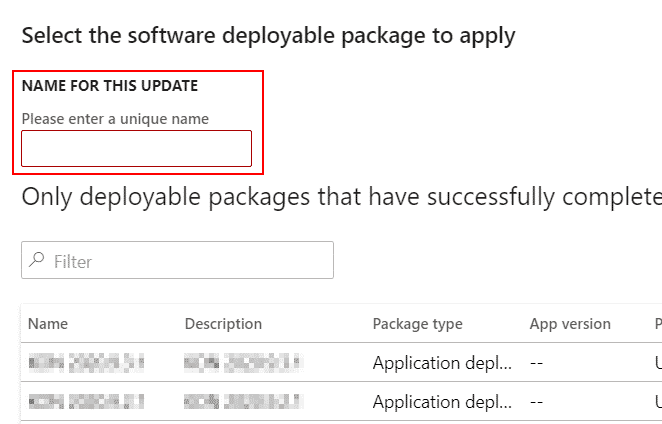
The default field’s value is the variable $(Release.ReleaseName) that is the name of the release, but you can change it, for example I’ll be using a pattern like PREFIX BRANCH $(Build.BuildNumber) to have the same name we have for the builds and identifying what we’re deploying to prod quickier.