Securing your Azure DevOps Pipelines
Thanks to the Azure Key Vault task (which is open source like many other tasks) getting a secret from a Key Vault has no secret (badum tssss).
Create a Key VaultLink to section: Create a Key Vault
Go to your Azure subscription and look for Key Vaults in the top search bar. If you don’t have an Azure subscription you can get one free with a credit of 170€/200$ for 30 days and try this or other things. In the Key Vault page click on “Create key vault” and fill the fields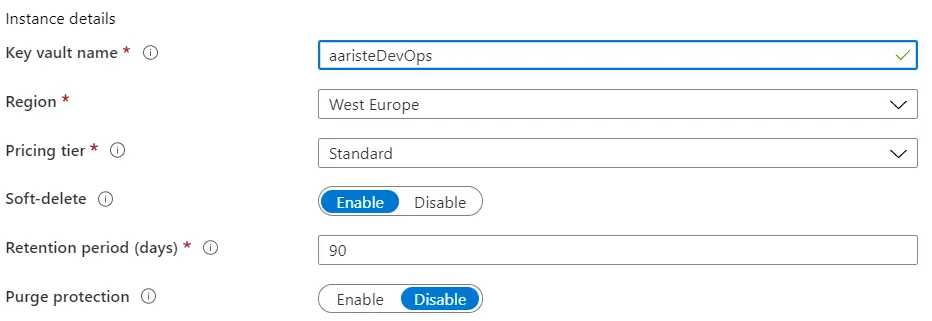 You can go through other tabs but I will just click “Review & Create” to create the vault.
Add the task to DevOpsLink to section: Add the task to DevOps
Now go to Azure DevOps and create a new pipeline or edit an existing one. Add a task to the agent job and look for azure key vault:
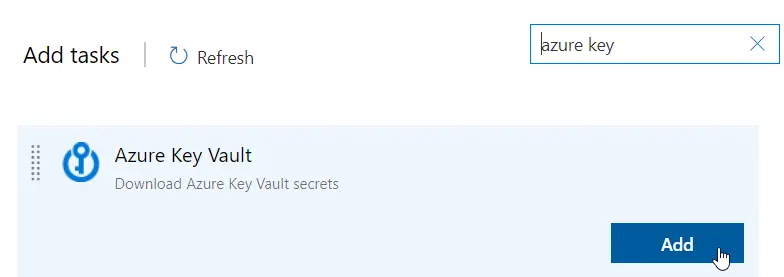
It’s possible that you might need to get the task from the marketplace first, if so remember you need to have enough right on the organization and not only the AZDO project you’re in. Now go to the task and select your subscription:
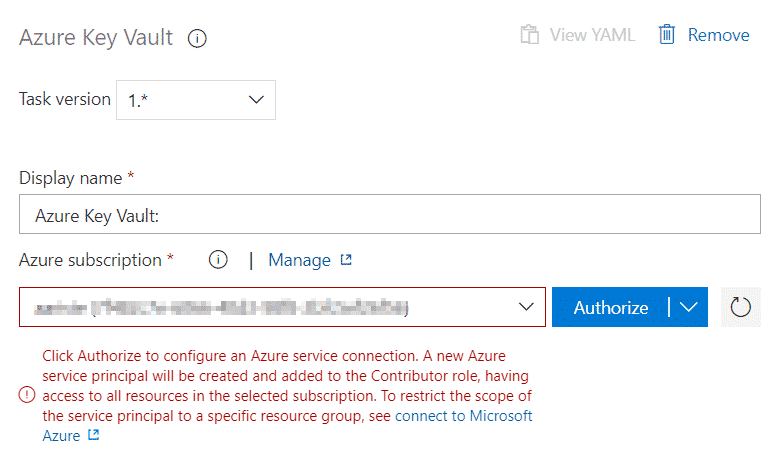
Once selected click the “Authorize” button. This will create a service principal in your subscription, we’ll use it later. After authorizing you just need to select the key vault you’ve created in the first step. And back to Azure.
Setup and secret creationLink to section: Setup and secret creation
Go to your key vault, “Access policies” and click “Add Access Policy”:
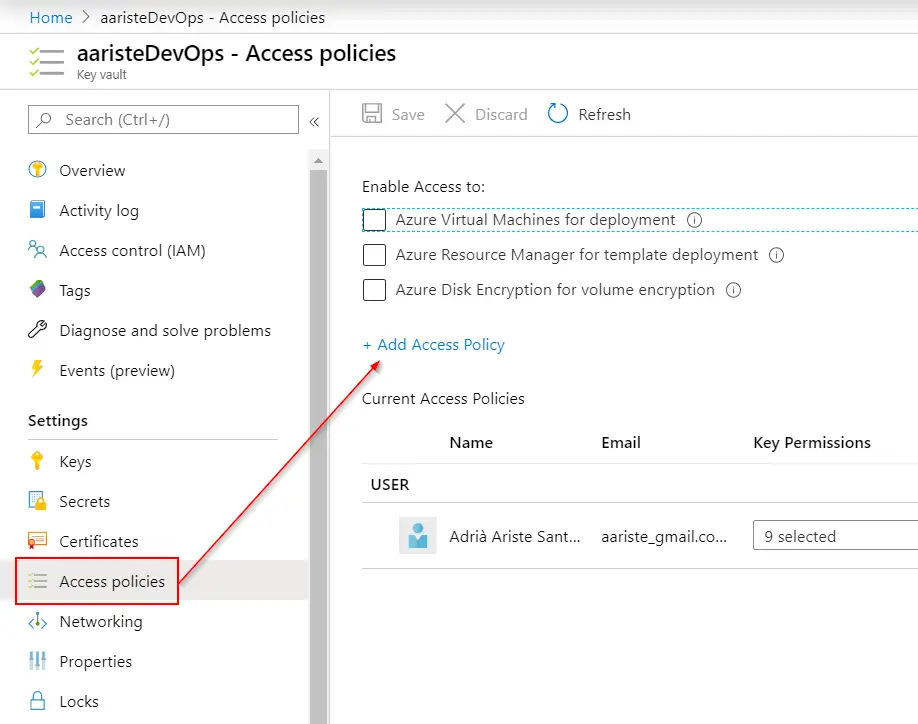
When we authorized the task to access our Azure subscription it created a service principal now we need to select it to list and get the secrets to be able to use them in our pipeline. Click on “Select principal”:
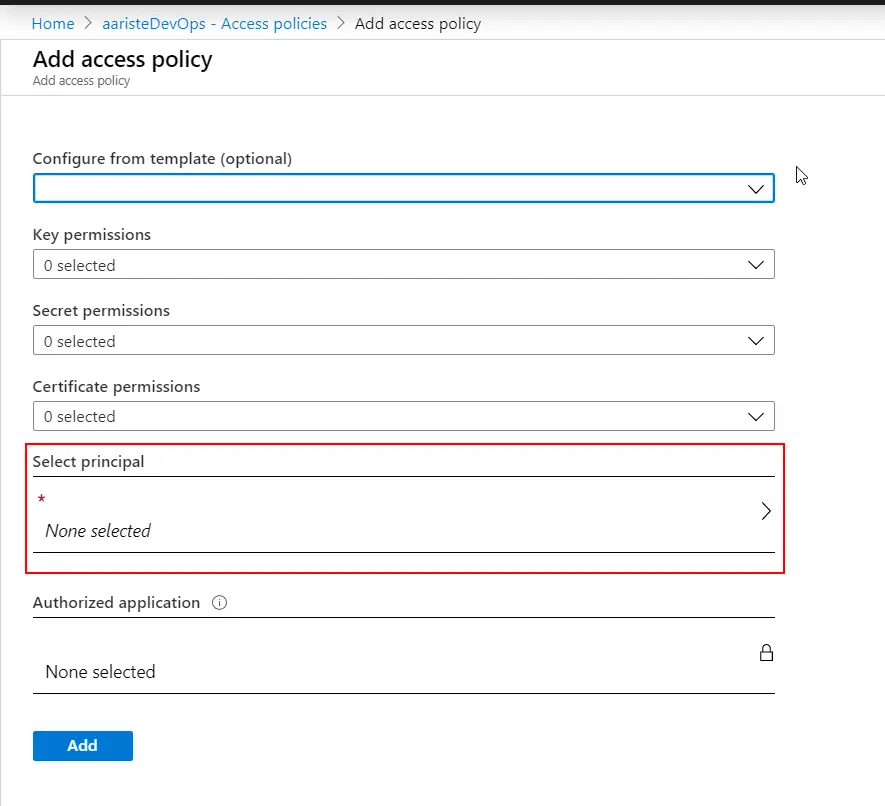
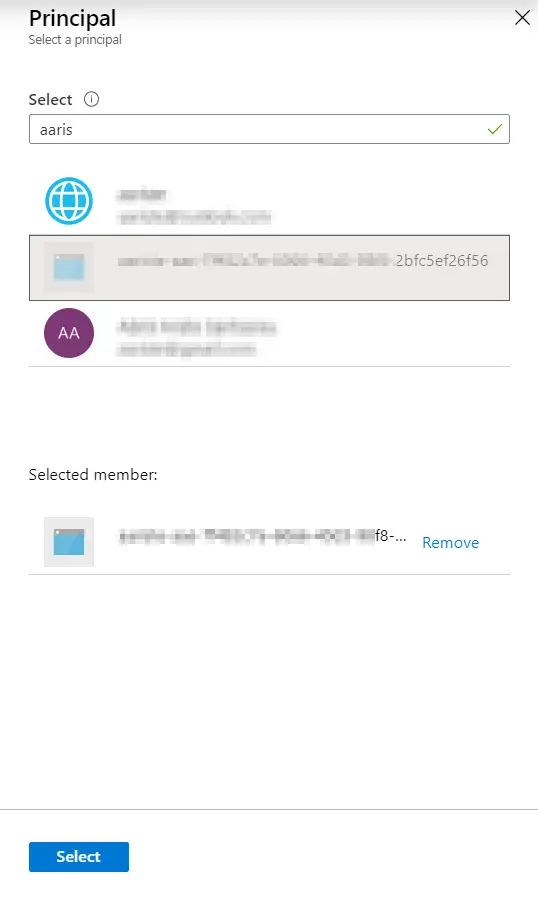
In the search bar type your subscription’s name, the principal should start with it and end with the same ID of your subscription. Select it and click the “Select” button at the bottom:
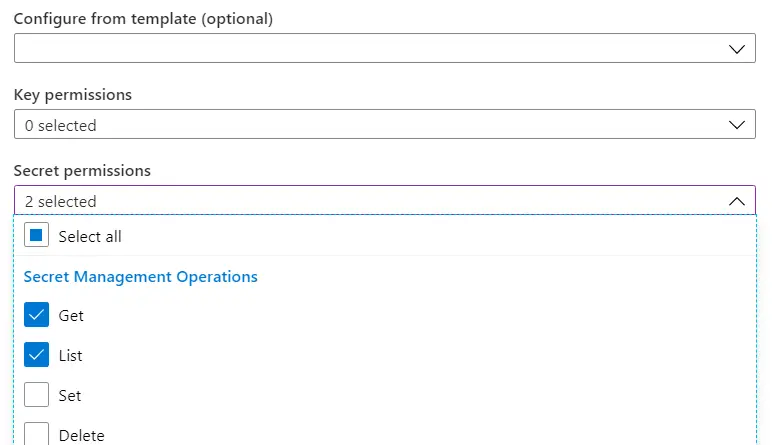
Now click on the “Secret permissions” lookup and under “Secret Management Operations” select Get and List:
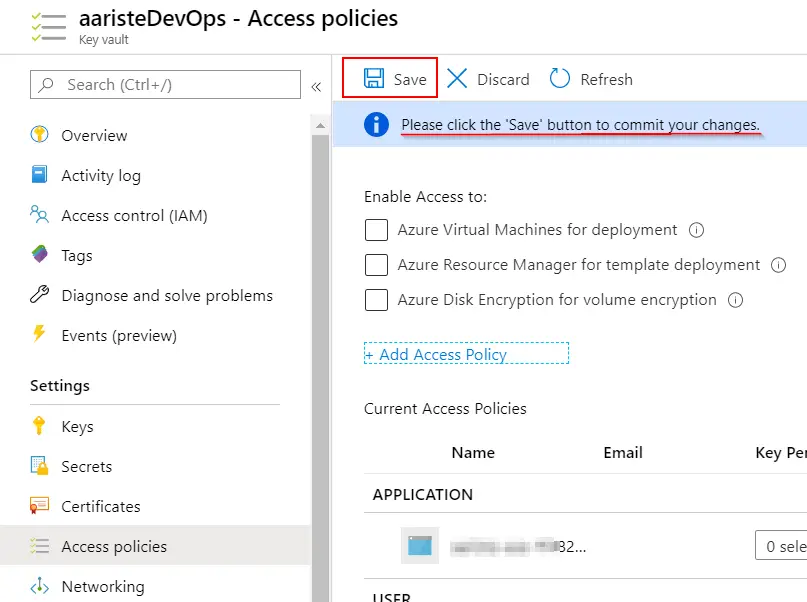
If you want to also use certificates or keys you should do the same. Finally click the “Add” button and don’t forget to click “Save”!! Otherwise nothing will be saved:
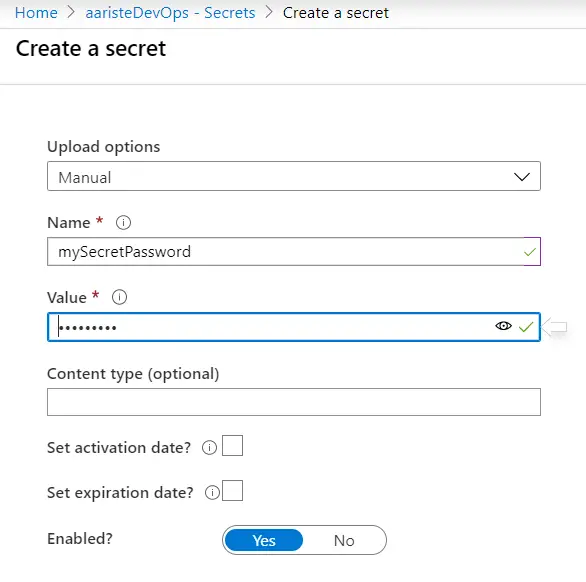
Now we can create a secret in the key vault. Go to secrets and click on “Generate/Import”, complete the fields and finally click on the “Create” button:
Using the secrets in your pipelinesLink to section: Using the secrets in your pipelines
We’re ready to use the secret in our pipeline. I will add a PowerShell task to call the LCS DB API using d365fo.tools but I’ll change all the variables to the secrets:
# Write your PowerShell commands here.
Install-PackageProvider nuget -Scope CurrentUser -Force -Confirm:$false

Install-Module -Name AZ -AllowClobber -Scope CurrentUser -Force -Confirm:$False -SkipPublisherCheck

Install-Module -Name d365fo.tools -AllowClobber -Scope CurrentUser -Force -Confirm:$false

Get-D365LcsApiToken -ClientId "$(myAppId)" -Username "$(myUserName)" -Password "$(mySecretPassword)" -LcsApiUri "https://lcsapi.lcs.dynamics.com" -Verbose | Set-D365LcsApiConfig -ProjectId $(myProjectId)

Get-D365LcsDatabaseBackups
As you can see now even the AAD App Id is masked. What the Azure Key Vault task does is getting the secrets from Azure and storing them in variables when the pipeline runs:

Then we can access it’s value with the $(variableName) notation in the PowerShell script. If you try to print the secrets’ values using the Write-Host command all you’ll get will be three asterisks, so you can see that using the Key Vault is more than safe. If we check the result of running the Get-D365LcsDatabaseBackups command we’ll see how good is this:
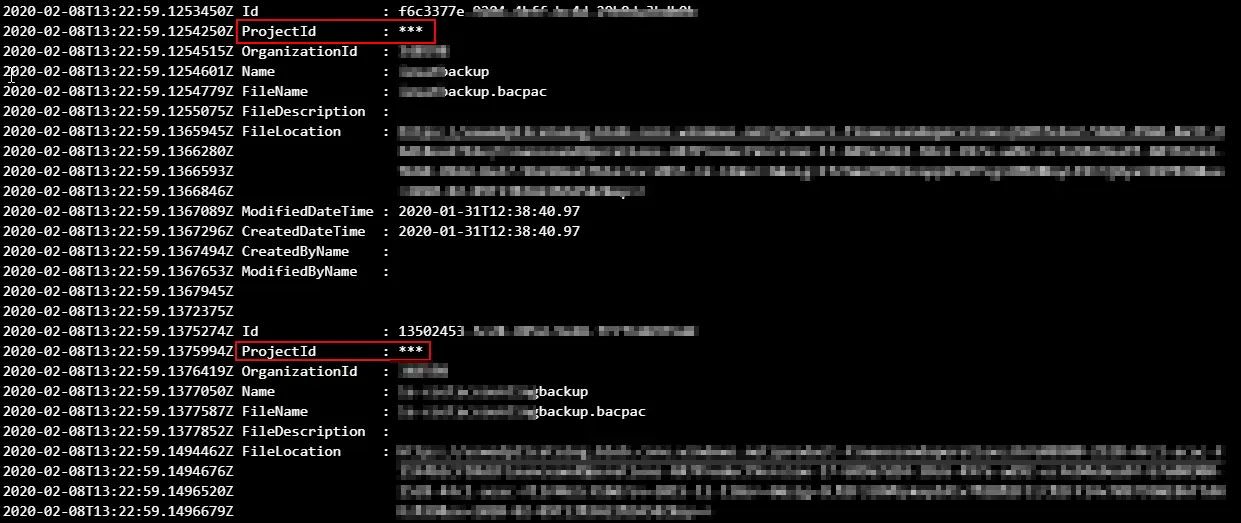
The ProjectId value is not printed because it was one of our secret values! And this is how you can add extra security to your Dev ALM!