Creating the LCS connection
The first step in the task is setting up the link to LCS using the AAD app we created before. Press New and let’s fill the fields in the following screen:

It’s only necessary to fill in the connection name, username, password (from the user and Application (Client) ID fields. Use the App ID we got in the first step for the App ID field. The endpoint fields should be automatically filled in. Finally, press OK and the LCS connection is ready.
LCS RegionsLink to section: LCS Regions
If you’re using a regional LCS instance for your project you need to take into account that the Lifecycle Service API Endpoint needs to be updated with the following values:
Thanks to Søren Printz Christensen for the tip!
In the LCS Project Id field, use the ID from the LCS project URL, for example in https://lcs.dynamics.com/V2/ProjectOverview/1234567 the project is 1234567.
Press the button next to “File to upload” and select the deployable package file generated by the build:
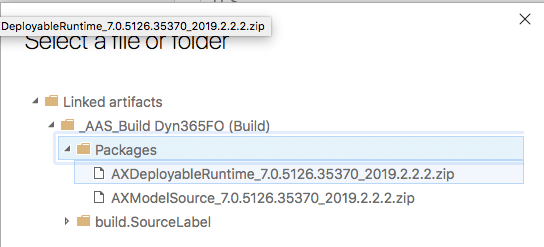
If the build definition hasn’t been modified, the output DP will have a name like AXDeployableRuntime_VERSION_BUILDNUMBER.zip. Change the fixed Build Number for the DevOps variable $(Build.BuildNumber) like in the image below:

The package name and description in LCS are defined in “LCS Asset Name” and “LCS Asset Description”. For these fields, Azure DevOps’ build variables and release variables can be used. Use whatever fits your project, for example a prefix to distinguish between prod and pre-prod packages followed by $(Build.BuildNumber), will upload the DP to LCS with a name like Prod 2019.1.29.1, using the date as a DP name.
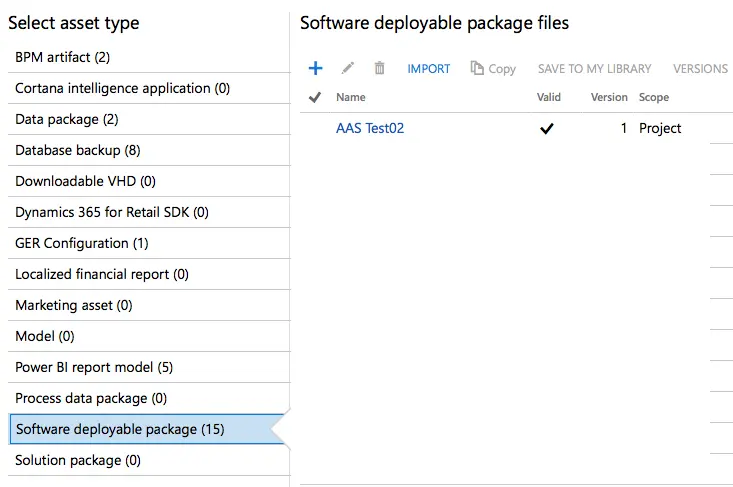
Save the task and release definition and let’s test it. In the Releases select the one we have just created and press the “Create a release” button, in the dialog just press OK. The release will start and, if everything is OK we’ll see the DP in LCS when it finishes:
The release part can be automated, just press the lightning button on the artifact and enable the trigger:
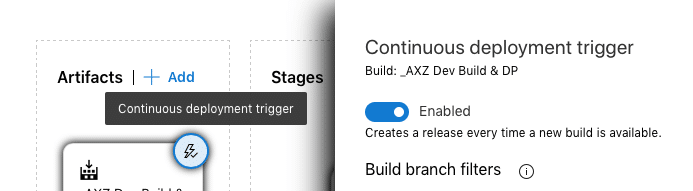
And that’s all! Now the build and the releases are both configured. Once the deployment package is published, the CI scenario will be complete.
2 comments
Hi, do you have solution for mfa authentication?
Hi Hernán,
it’s not possible to use a user with MFA with the LCS service connection. If your environments are on the new experience on PPAC it’s possible to use a Service Principal instead.
Comments are closed.